Sunday, 1 February 2015
Wednesday, 21 January 2015
DRUPAL INSTALLATION AND CONFIGURATION ON WAMP
DRUPAL 7.34 CONFIGURATION ON WAMP
Pre-requirements: Wamp must be installed with default settings
1. Download drupal from following url
2. Place the downloaded .zip folder and unzip it in following location.
C:\WAMP\WWW\
3. Open localhost in your browser and navigate to "phpmyadmin" to create database for drupal.
4. Navigate to Databases tab in phpmyadmin interface and create a db named "drupaldb"
5. Open localhost and navigate to "drupal-7.34" or whatever version you have downloaded
6. Drupal installation/configuration step 1.
Select "Standard" and press "Save and continue"
7. Default "English" language selected. Press "Save and continue"
8. Select "MySQL...." then "drupaldb" as db name and "root" as username and leave the password field blank or db password which you set in phpmyadmin then press "Save and continue"
it will take some time to create db.
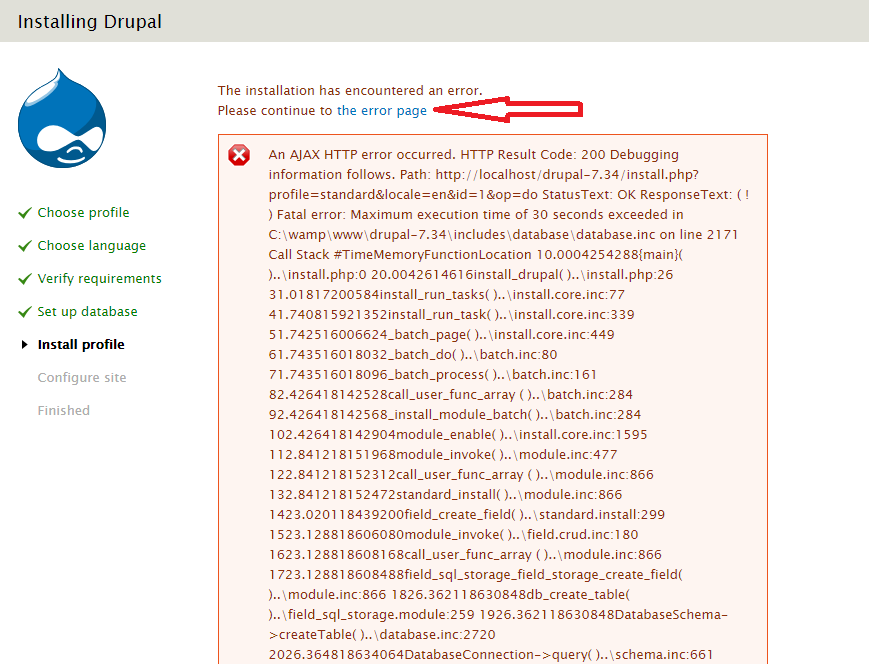
9. Db creation will end up with an error. ignore and pass it on using "the error page" link
10. Select your "Site name" as you want. Select "Site e-mail address" then "Username" then "E-mail address" then "Password" then select "Country"
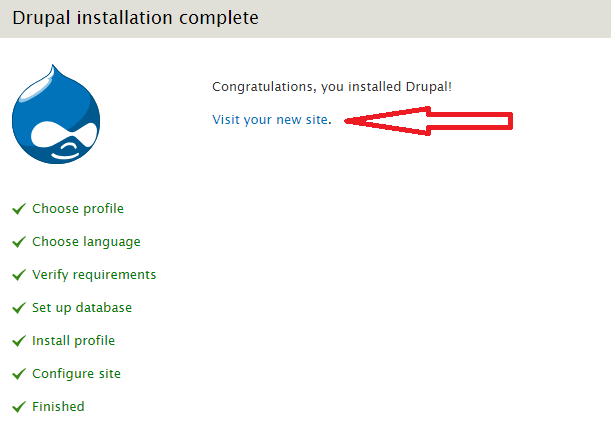
11. It will end up with a link to your website as following. click the link to visit your created site.
12. Finally Drupal comes up with an interface of a dummy site with your created user login. now you can edit or manage your website.
Pre-requirements: Wamp must be installed with default settings
1. Download drupal from following url
2. Place the downloaded .zip folder and unzip it in following location.
C:\WAMP\WWW\
3. Open localhost in your browser and navigate to "phpmyadmin" to create database for drupal.
4. Navigate to Databases tab in phpmyadmin interface and create a db named "drupaldb"
5. Open localhost and navigate to "drupal-7.34" or whatever version you have downloaded
6. Drupal installation/configuration step 1.
Select "Standard" and press "Save and continue"
7. Default "English" language selected. Press "Save and continue"
8. Select "MySQL...." then "drupaldb" as db name and "root" as username and leave the password field blank or db password which you set in phpmyadmin then press "Save and continue"
it will take some time to create db.
9. Db creation will end up with an error. ignore and pass it on using "the error page" link
10. Select your "Site name" as you want. Select "Site e-mail address" then "Username" then "E-mail address" then "Password" then select "Country"
12. Finally Drupal comes up with an interface of a dummy site with your created user login. now you can edit or manage your website.
Wednesday, 31 December 2014
Windows can't stop your 'Generic volume' device because a program is still using it
Windows can't stop your 'Generic volume' device because a program is still using it. Close any programs that might be using the device, and then try again later
Solution:
1. Right click on my computer, select manage
2. Click on disk management tab
3. Left tab (which has probably "disk 1" labelled )on external storage drive right click and select "offline"
4. Now from task bar, from usb icon, click and select your device and remove it, Now it says "safely remove"
NOTE: when you plugin that external storage again, you must have to put it online by following above steps.
Subscribe to:
Posts (Atom)